Start with when the problem occurs
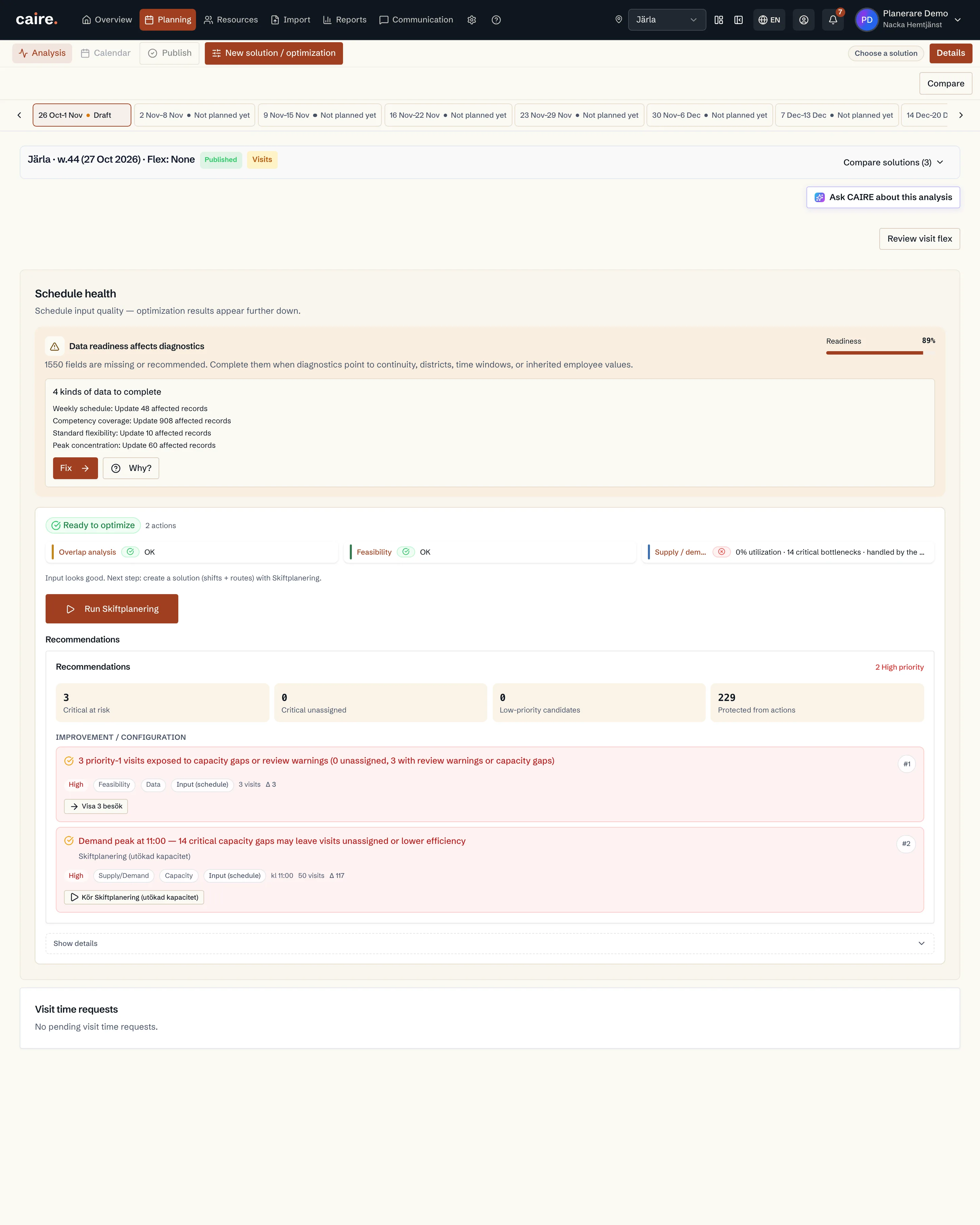
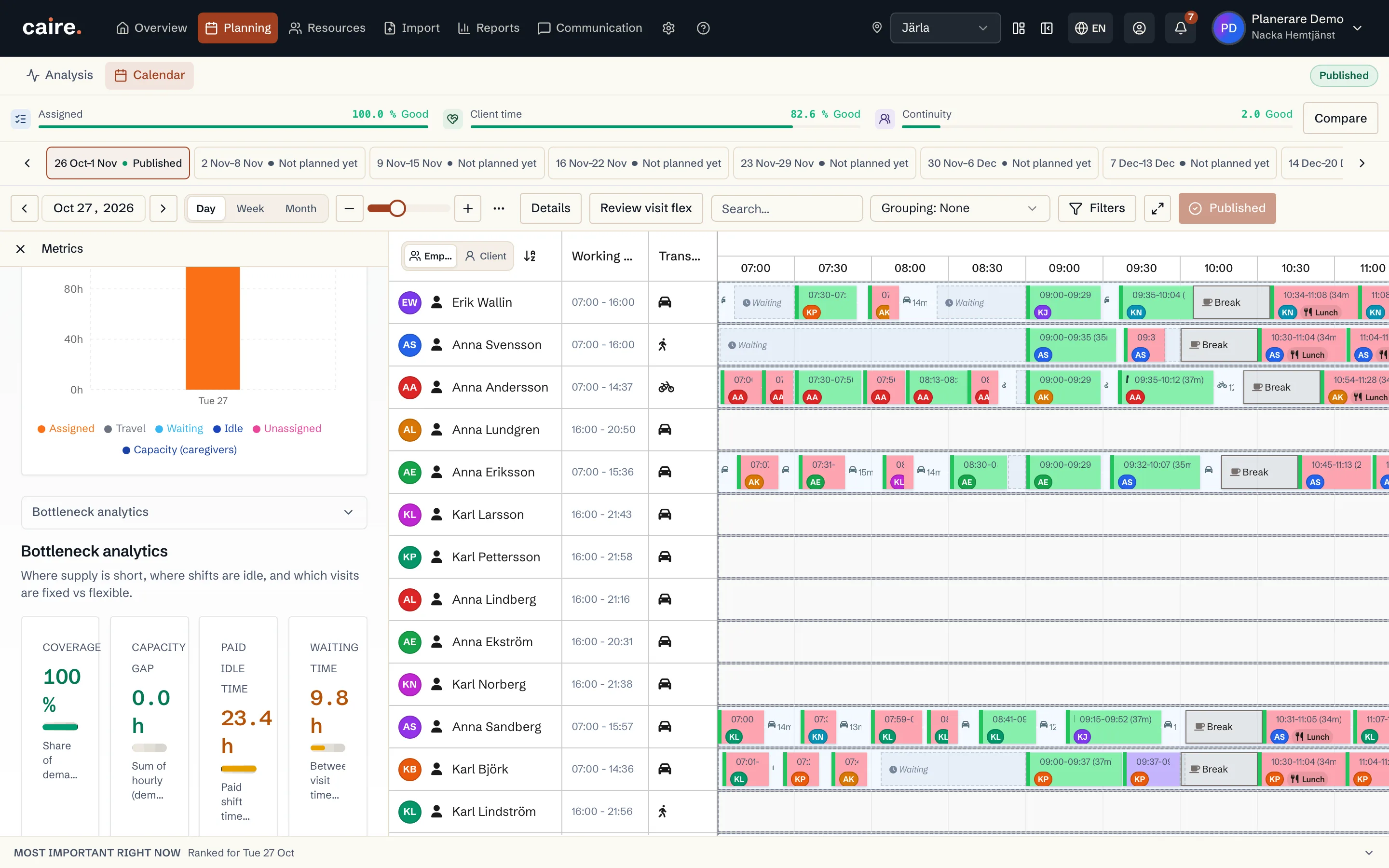
Select Bottlenecks in the left menu under Solution for the solution option you are reviewing. The heatmap places demand, available capacity, and solution outcomes on the same timeline. Select a problematic time slot to open the evidence behind the color instead of relying on a summary percentage.
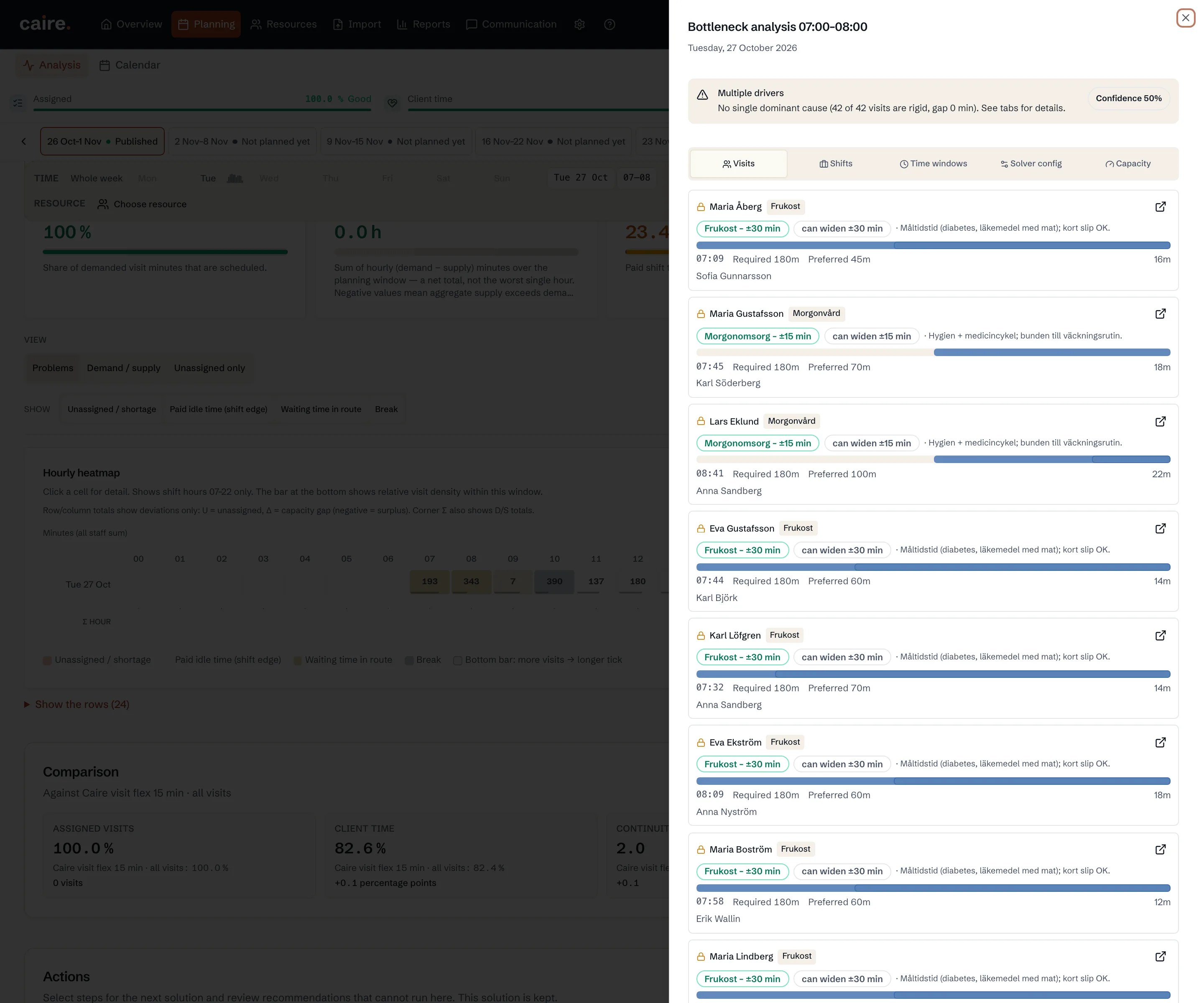
At the top of the detail view, Caire calculates the most likely cause and its confidence for the selected time slot. The assessment is not persisted as a narrative or action: use it as guidance and always inspect the rows below before changing data or starting another run.
Review affected visits
The Visits tab lists visits in the selected time slot. Unassigned and time-critical visits appear first, so you can see whether the problem comes from narrow time windows, a lock, or the absence of a matching available employee.
- Assigned or unassigned shows whether the visit received a place in the solution.
- Required and preferred windows show the visit's real room to move.
- Movability explains whether the visit can widen or must remain fixed.
- Open the visit to check its foundation data before changing anything.
Check shifts in the same time slot
The Shifts tab shows solution shifts that actually overlap the time slot. Compare shift times, overlap minutes, and breaks with the visits. Blocked matching means reusable paid time exists but time windows, skills, or other requirements prevent assignment. Missing capacity means the slot needs additional available staffing or a different shift shape.
- Overlap shows how much of the shift is present in the selected time slot.
- Breaks are shown separately so they are not mistaken for available visit time.
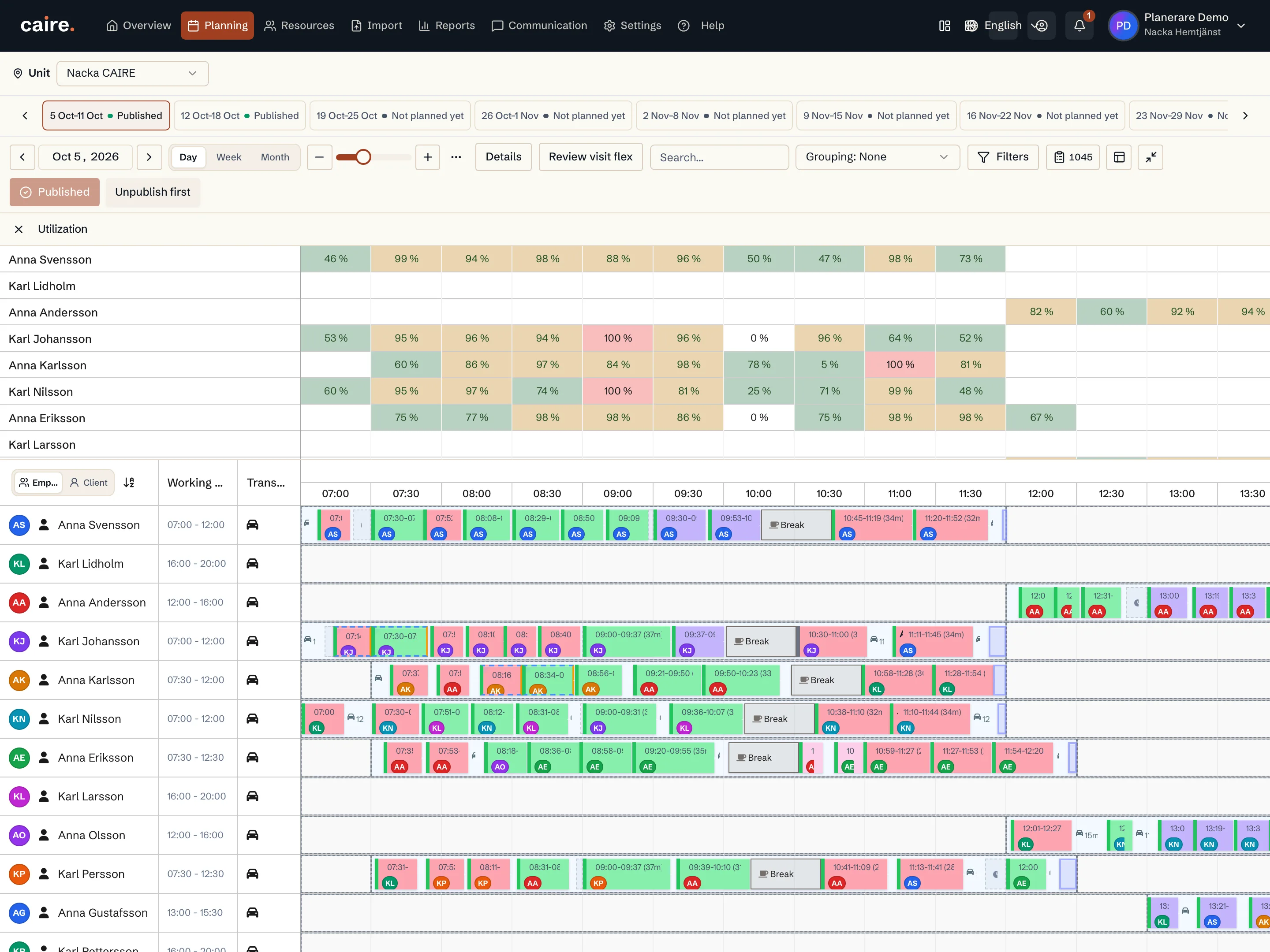
- Open the schedule to see the shift and visits in the calendar.
From evidence to the next safe step
Diagnostics do not make the change for you. Check the named visit or shift data and remember that Efficiency may intentionally expose an expensive residual tail as optional or unassigned visits. Make a bounded correction when the source data is wrong, and then create new comparable options. This lets you verify that the bottleneck actually disappeared without overwriting a working schedule.