From source data to an approved plan
Each step has a clear responsibility. Receiving data is separate from publishing a plan or applying it in another system.
Source data
Planning input from a connected system or supported file.
Connect
Checks for source identity, unit and permitted data exchange.
Review and accept
An authorised person reviews input before it is used.
Plan and optimise
CAIRE creates and compares proposals within operating constraints.
Approve and publish
The planner selects the plan that may be used.
Retrieve and acknowledge
An authorised partner can read the plan and record an application receipt.
Publication starts the operational day
The planner initially publishes the chosen visit plan. Sickness, cancellations, delays and execution events then affect the current operational plan. Approved staffing changes and permitted retiming or resequencing create a new revision, with a base version and receipt.
Changes remain within their permitted windows and protect completed work and the caregiver’s next visit. A change outside those boundaries returns to the planner. A computed alternative is applied only through the current plan’s revision rules; affected connected apps receive the updated route in real time.
Clients can request a visit cancellation in the app when enabled. For another time or a future absence such as travel or a hospital stay, contact the office. Employees can report absence and staffing requests through their app. Phone, SMS and email contacts follow the provider’s contact routines; authorized staff record the relevant planning change in CAIRE. Future client pauses are dated source changes for draft weeks, handled through the overnight refresh path. Real-time revision rules apply separately to the published current plan.
Explore the data layers, publication and optimization flowWhat do you use CAIRE Connect for?
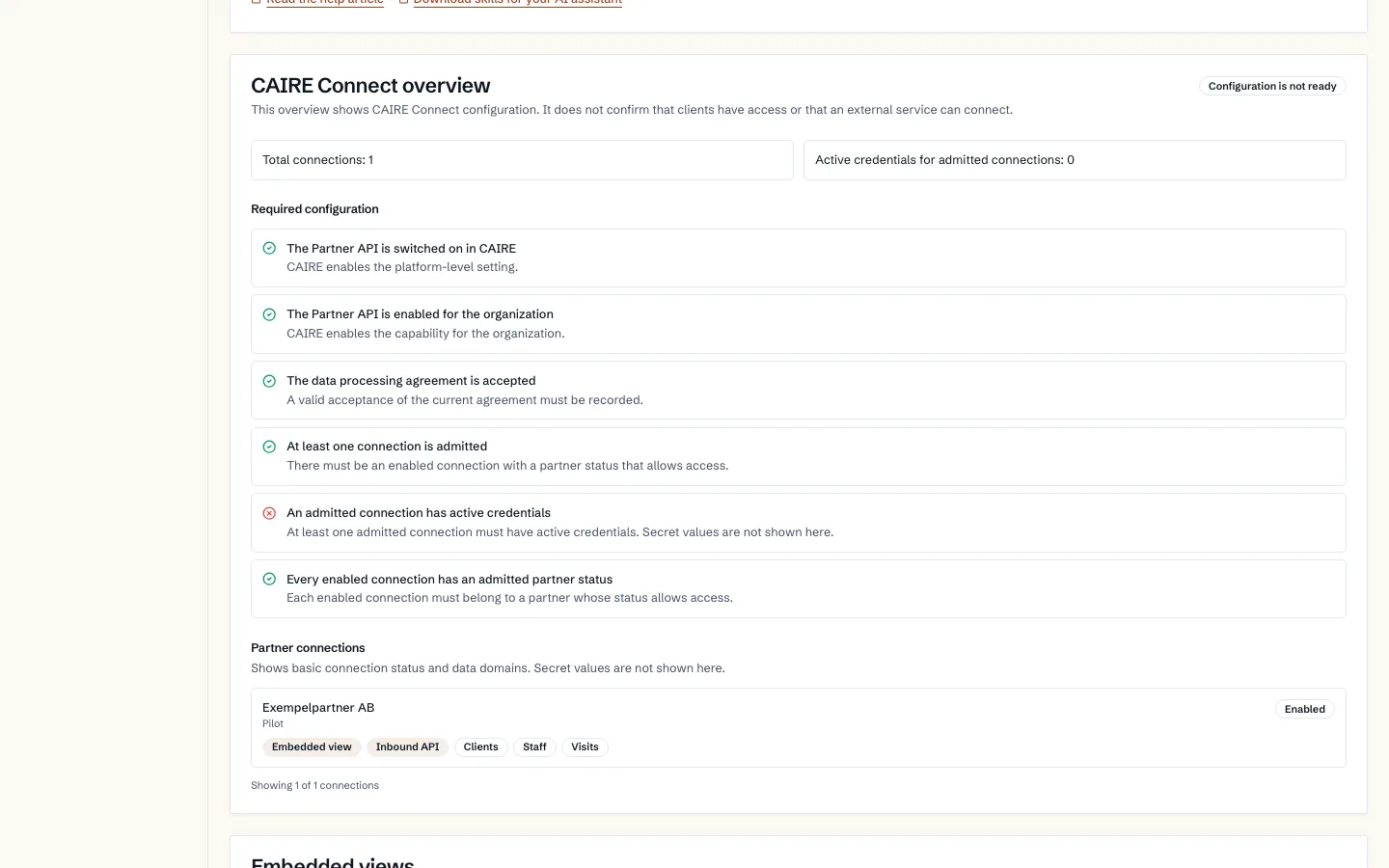
CAIRE Connect (beta) links CAIRE to your other systems. A connected system can read units, clients, staff, visits and published plans, read analyses and send requests that a planner then decides on. You decide which units and which data each connection can reach.
A partner request does not itself change the plan. The planner reviews cancellations and time-change preferences. Initial publication belongs to the planner; applied operational changes follow controlled revision rules.
Three paths with different purposes
- Partner API: your system, or your vendor's, calls CAIRE with its own API key and the permissions you have chosen. It is used for system-to-system reads and for requests that a planner decides on.
- Care system: where a connection to your current care system is set up, CAIRE fetches planning input from it. The read connection is one-way and changes nothing in the other system. Other data exchange requires a separately configured and verified flow. The planner reviews the input before it is used. Journal responsibility is explicitly assigned to CAIRE’s native social Journal or an external system.
- MCP: a person connects an AI tool with their own CAIRE sign-in. The tool reaches only what that person is permitted to see. MCP is not the same as an API key.
What can you do with Connect?
The Partner API must be enabled for your organisation. An administrator creates API keys under Settings → Integrations and chooses which units and permissions each key gets.
- Connect gives systems access to agreed planning data and published plans, with a reviewed flow for submissions and operational requests. The shared developer index identifies exactly which capabilities each interface exposes.
Submit and review planning input
A connected partner with the required permission can submit planning input to Connect and follow its status. Input waits for review; receiving it does not start optimisation or publish a plan.
An authorised planner reviews the source, unit, visits, staff and planning rules before accepting the input. A dated plan is then created and optimised through CAIRE’s ordinary planning workflow.
Available data and any write-back are established for each connection. Partner API support for published plans and receipts does not mean a source system can automatically receive changes.
Requests and the planner’s decision
A request for a cancellation, a new time or an absence reaches the planner as pending. A cancellation or new time does not take effect until a planner has approved the request. Your system follows the status by reading the request or through a webhook event, and can withdraw a request that is still pending.
- Cancellation: cannot be requested for a visit that has started or whose time window has begun. The organisation's cancellation setting also applies.
- New time: your system gives a preferred time window in the future. Once the planner has approved the preference, the planner moves the visit. No new schedule is created and nothing is published automatically.
- Absence: the report becomes a pending sick-leave request and immediately shows staffing gaps on published days. No reason is sent. Withdrawing the report closes the gaps again.
Receipts and deletions
Receipt: once your system has received a published plan, it can send a receipt with the outcome applied, partially applied or rejected, and a reason for each visit it could not apply. The receipt does not change the plan. A receipt can only be sent for the plan that is currently published. You can read your own receipts for a plan.
Deletions: a unit's deletions list shows the identifier and type of records that have been permanently deleted, for example clients, employees, visits or plans. You see only records the key may read. An archived client is not deleted; it stays in the read with status archived. Use the list to remove the same data from your system.
Getting started: administrator and developer
- 1. Open Settings → Integrations and check that the Partner API is enabled for the organisation.
- 2. Create an API key. Choose the units it may use, the fewest permissions possible and only the data classes you need.
- 3. Save the secret when it is shown. CAIRE shows it only once. Never place it in tickets, chats or source code.
- 4. Get an access token from the token URL with the client ID and secret. The token is valid for at most one hour.
- 5. Make a first read, for example of the units the key may use. Lists are read page by page, and updatedSince returns only what has changed.
- 6. Requests, absence reports and receipts require an idempotency key: the Idempotency-Key header with a unique value per call. The same key with the same body returns the same answer again.
- 7. Also test refused access, repeated calls, a revoked key and event delivery before the integration is used in operations.
Follow up, troubleshoot and revoke
Keep resource IDs, call IDs, status and receipts in your integration. A successful call only means that call succeeded. Check separately whether a request has been approved and whether a plan has been published.
For refused access, the administrator checks the key's status, who it is linked to, its permissions and units. For event problems, the developer checks the address, the signature and the delivery log. Log identifiers and error codes, not bodies containing personal data.
Revoke the key when it is no longer needed. All its access tokens then stop working at once. Create a new secret when needed and follow your organisation's incident routine.
Versions
The Partner API is version v1. Within v1 only new fields, values and calls are added; your system should ignore fields and values it does not recognise. A change that is not backward compatible becomes v2, and v1 stays supported for at least 12 months after v2 is generally available.
The Swagger reference is at https://www.caire.se/en/resources/developers/api. Explore operations, fields, permissions and responses without entering credentials. The OpenAPI file is also available at https://app.caire.se/api/partner/v1/openapi.json.