Schedule diagnostics
Guide
See how diagnostics connect a time slot to affected visits, shifts, and the next safe check.
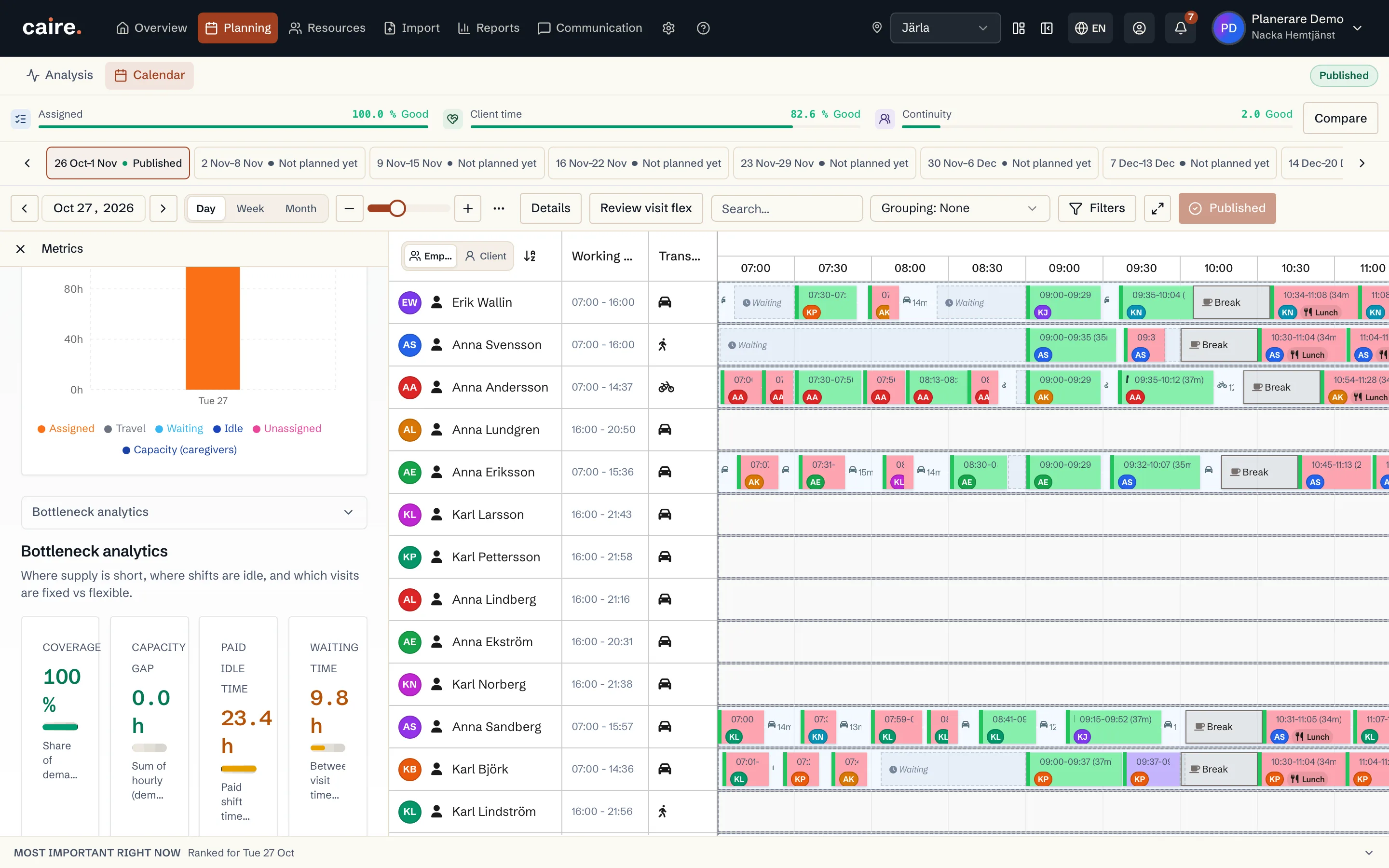
- 1. Open Diagnostics for a selected solution option.
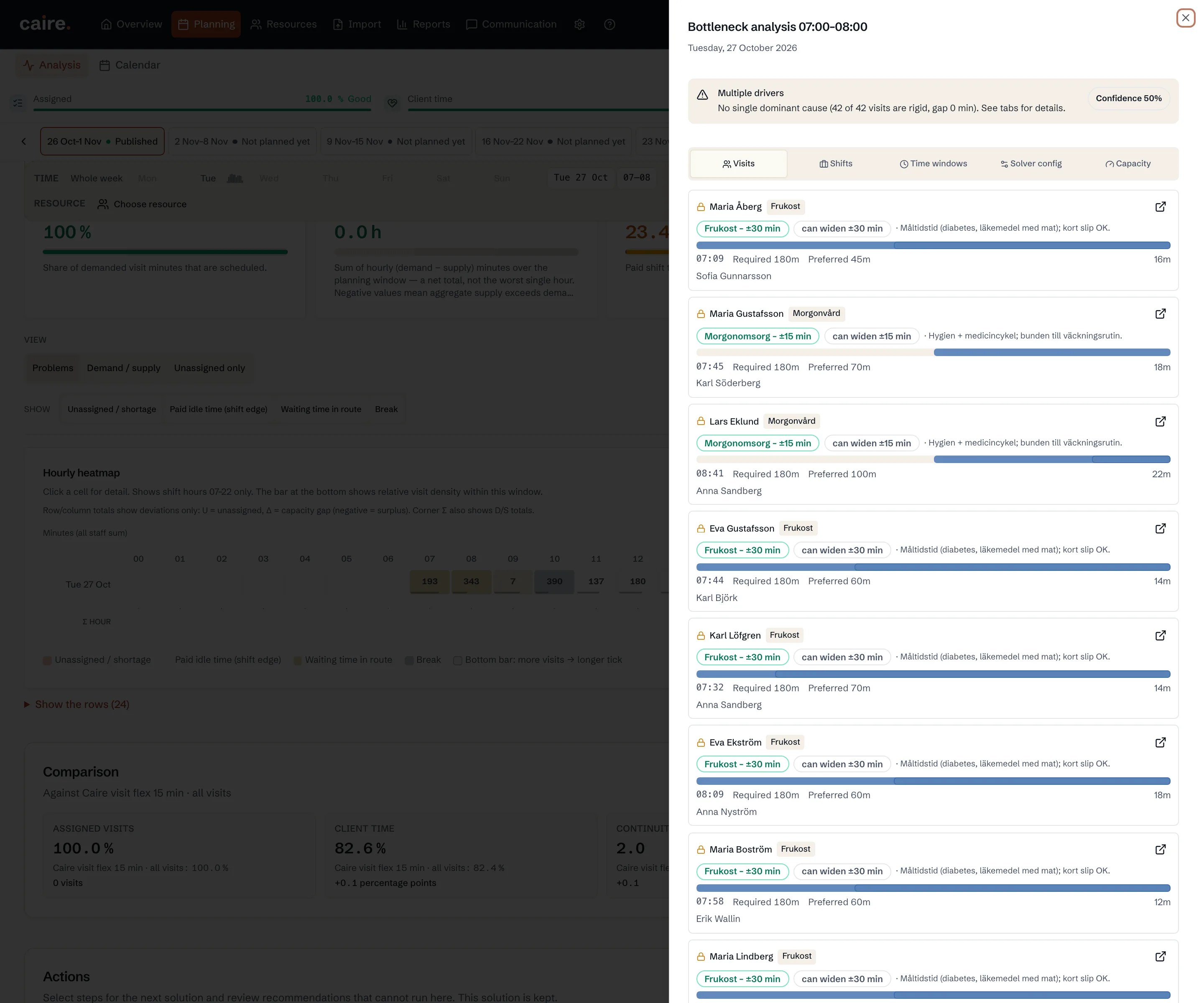
- 2. Open Advanced review, select Bottlenecks, and then choose a time slot.
- 3. Review Visits and Shifts.
- 4. Check the evidence before changing data or rerunning.
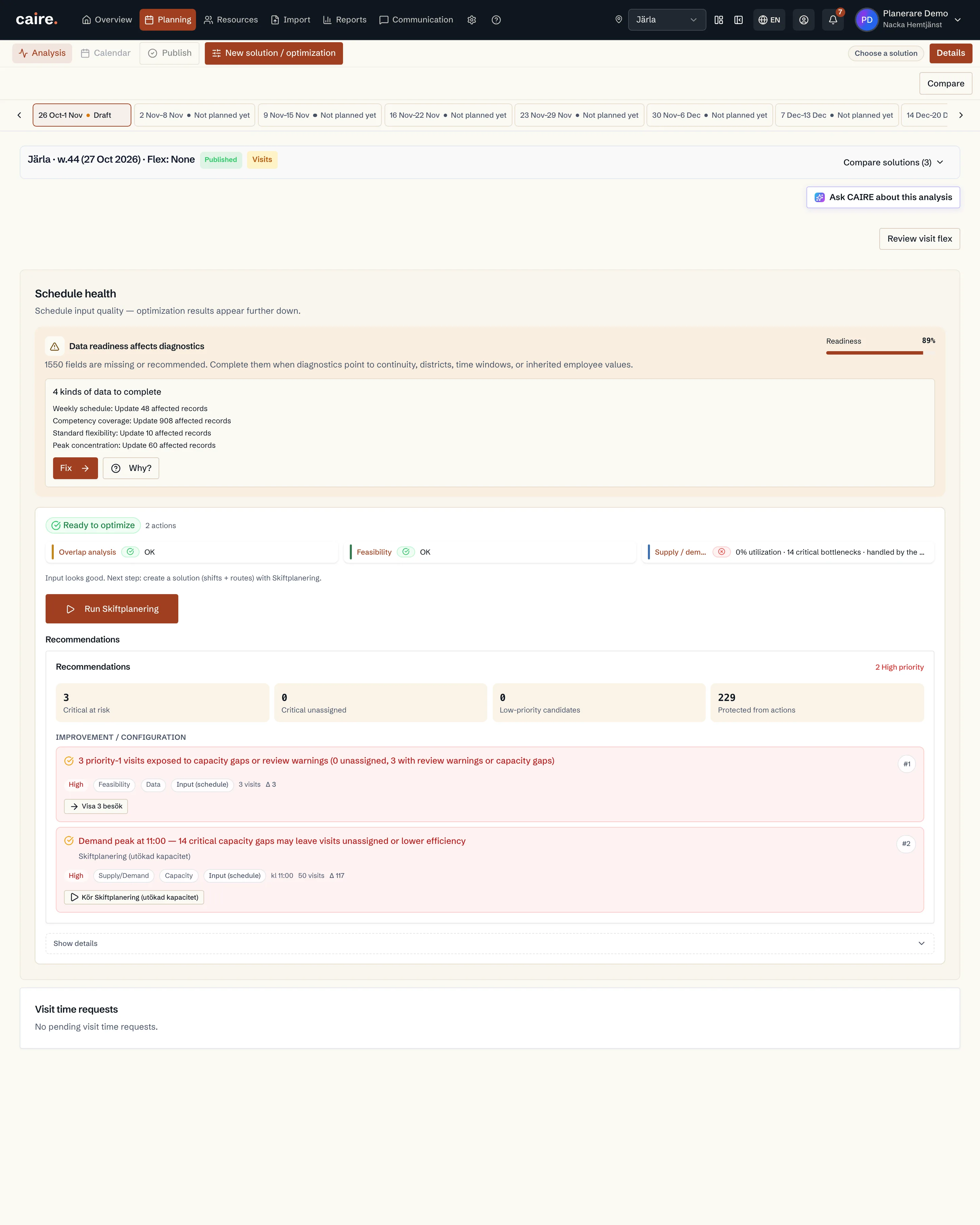
Schedule health with input quality before the schedule is optimized
Fields and use
| Field | Level | Why it matters | Used for |
|---|---|---|---|
| Time slot | First schedule | Combines demand, available capacity, and outcome for a selected time. | Finding when the problem occurs. |
| Visits | Better metrics | Shows assignment, time windows, and whether a visit can move. | Understanding blocked matching: capacity exists, but time windows, skills, or other requirements prevent assignment. |
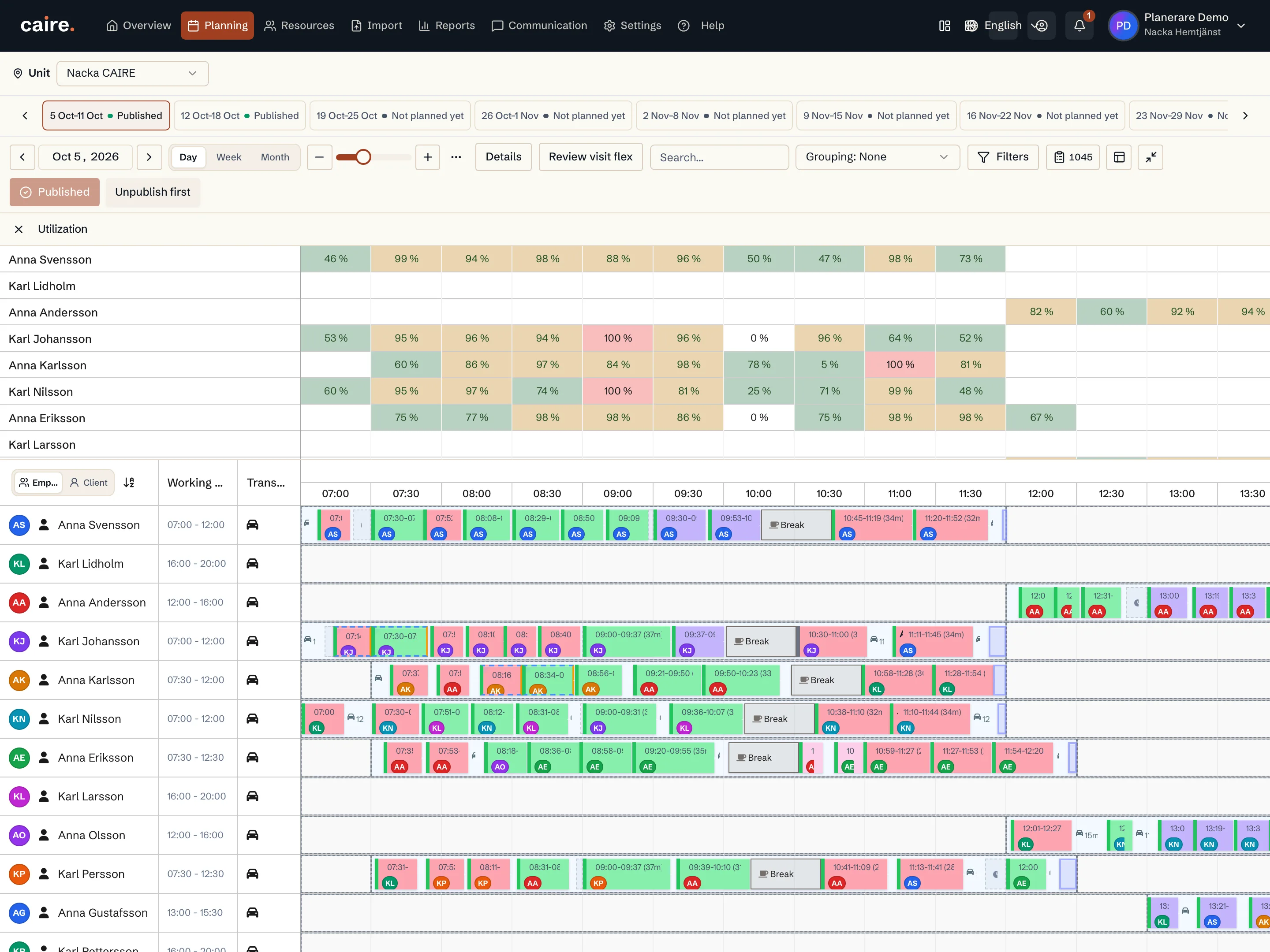
| Shifts | Better metrics | Shows shifts overlapping the time slot, overlap minutes, and breaks. | Understanding missing capacity: the time slot needs more available staffing or a different shift shape. |
Where it appears