Schedule
Guide
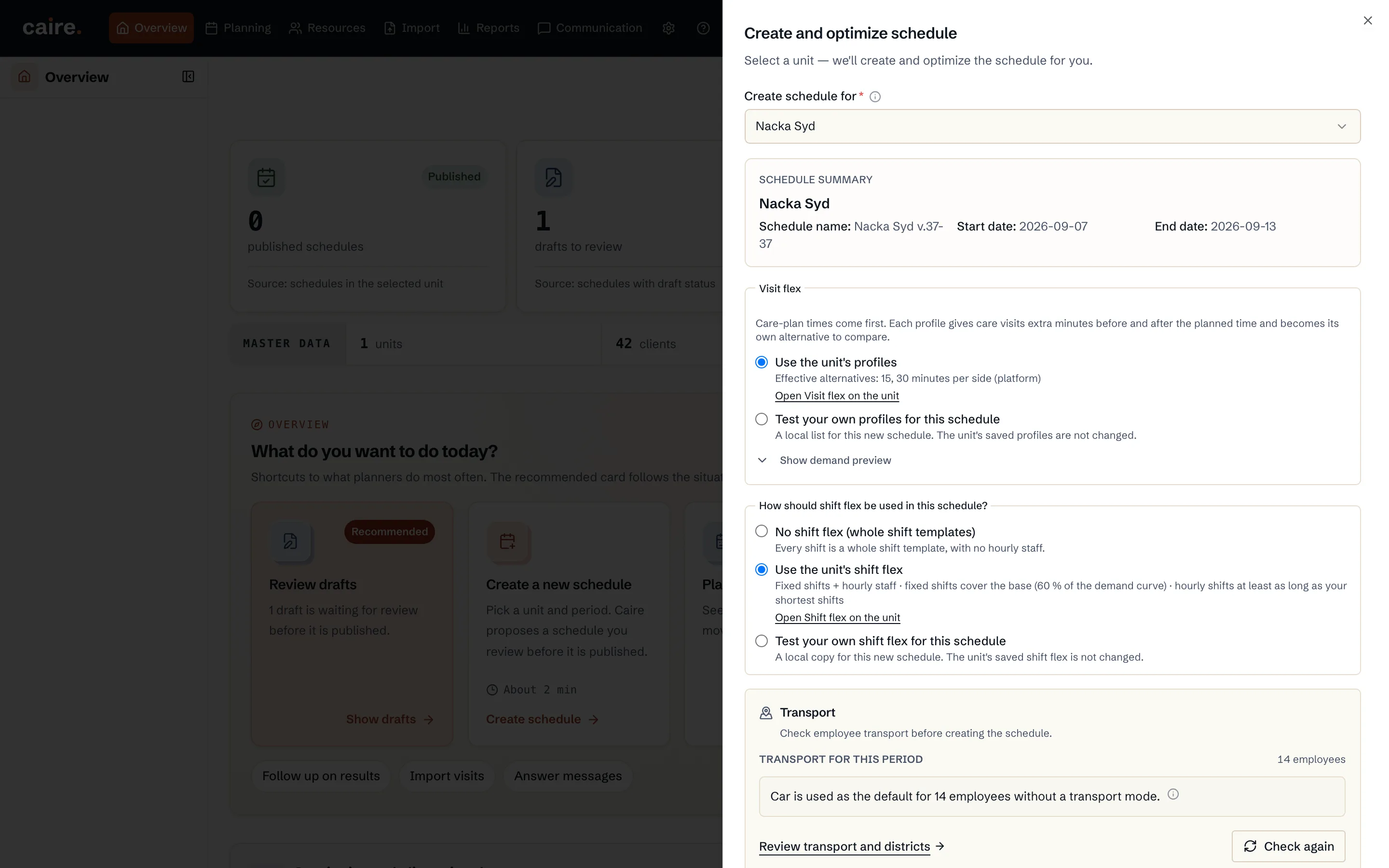
See how to choose a unit, review the automatically suggested details, and start a solution frontier from one frozen source snapshot.
- 1. Start the create-schedule flow.
- 2. Choose a unit.
- 3. Review the suggested name and period; open Details to edit them or view the data check.
- 4. Start Standing data, Coverage, and Efficiency.
New schedule dialog with unit, period and settings
Fields and use
| Field | Level | Why it matters | Used for |
|---|---|---|---|
| Unit | First schedule | Determines which team is planned. | Materialization, metrics, and access. |
| Period | First schedule | Suggested automatically with the schedule name and editable under Details. | Visits, shifts, and solution comparison. |
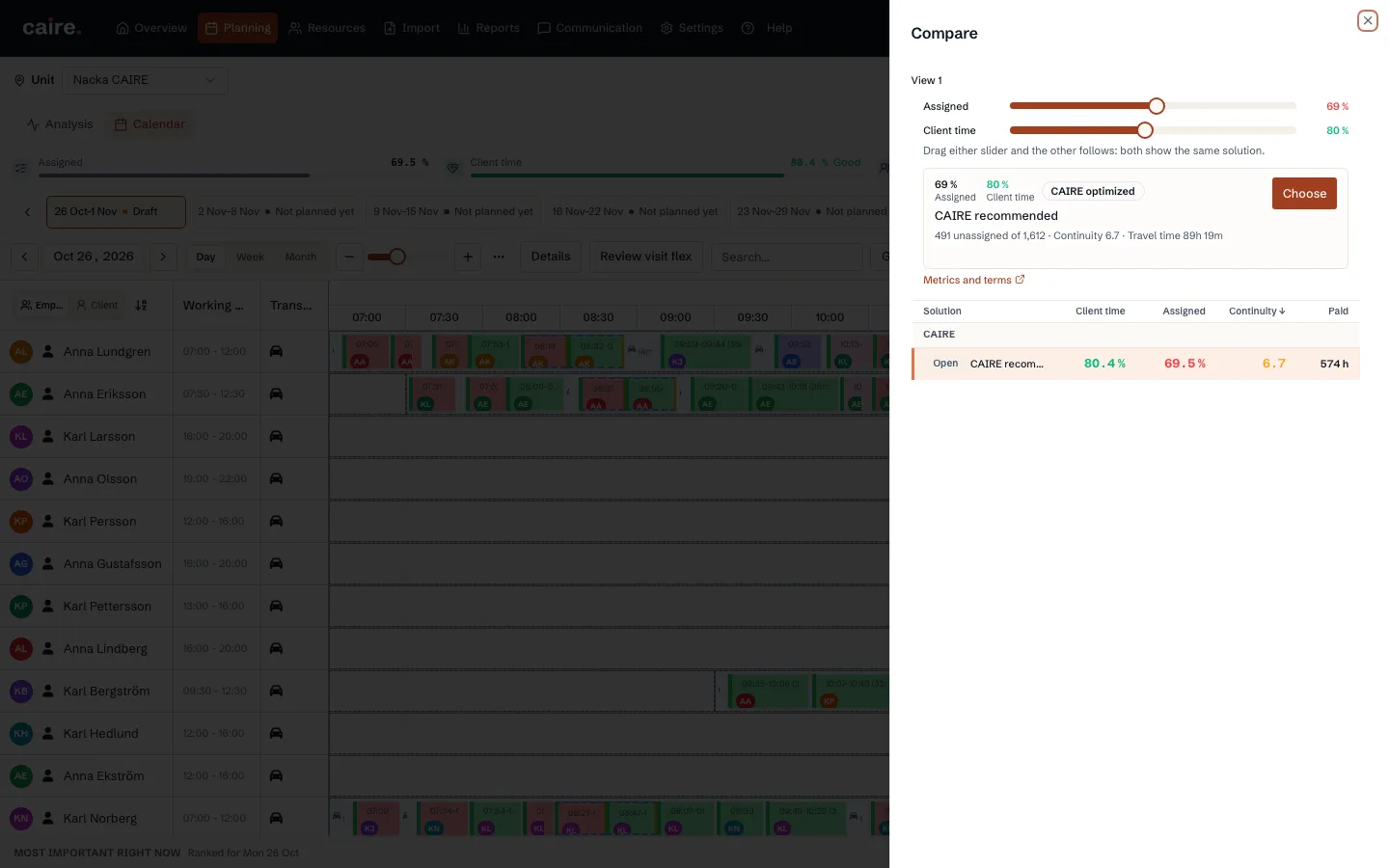
| Solution frontier | Better metrics | Creates Standing data as the control, Coverage, and N Efficiency rungs from one frozen source snapshot. Each level gets its own time-window and capacity policy. | Control, trade-off review, and an informed choice. |
Where it appears