- For
- Coordinator
- Type
- Guide
One row per caregiver or per client
Open the schedule and choose Kalender (Calendar). The calendar opens with one row per caregiver, showing each route. Choose Kund (Client) to see one row per client instead. Your choice stays when you reload the page or share the link.
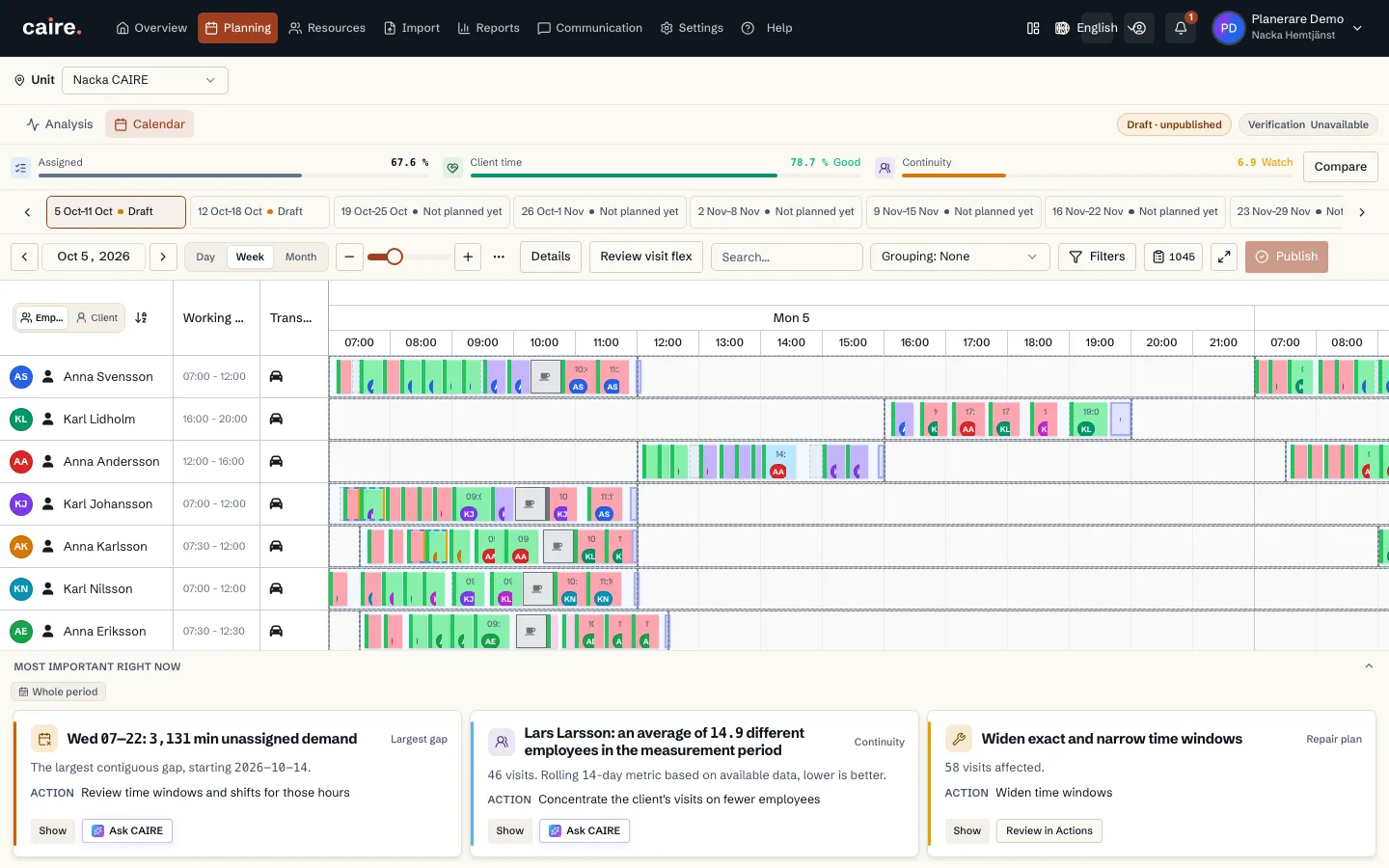
Move a visit
Drag the visit to another time or another caregiver. Caire warns at once when something is off, for example outside the allowed time window, outside working hours or missing skills. You may drag a visit outside its time window in the draft; when you save, Caire plans with the widened window.
Choose Spara utkast (Save draft) when you are done. The changes are saved as a new version and the original solution is not changed. Review the draft and run it. The result is a new solution that you can compare and publish. Återställ osparade ändringar (Reset unsaved changes) undoes everything you have not saved.
- You cannot create a shift by dragging a visit to a caregiver who does not work that day.
- The metrics show the last finished solution until the new one is ready.
Lock a visit
Open the visit and choose under Lås besöket (Lock the visit). The lock is your own decision, and the calendar refuses any move that would break it until you unlock the visit.
- Lås tid (Lock time): the visit keeps its start time, with any caregiver. It cannot be moved or resized in the calendar.
- Lås vårdare (Lock caregiver): the visit keeps its caregiver. The optimisation may still move it within its time window.
- Lås tid och vårdare (Lock time and caregiver): both stay fixed.
- A lock on a visit template is copied to every visit created from the template.
Unplan or cancel
Right-click a visit. These menus are the only way to remove something from the calendar; the Delete and Backspace keys do nothing.
- Avplanera (Unplan): the visit is taken from the caregiver and becomes unassigned. It stays and can be planned again. With several visits selected, the choice applies to all of them except locked visits.
- Avboka besök (Cancel visit): the visit is cancelled and leaves the solution.
- Redigera (Edit) opens the visit so you can change time, length and notes. Visa detaljer (Show details) shows it without changing anything.
- Removing the visit from this schedule removes that occurrence. The template stays.
- Removing the template for all future schedules deletes the visit template from the care plan and cannot be undone.
- Right-clicking a caregiver offers removing them from this solution and Markera sjuk — ersätt (mark sick and replace).
When the schedule is already published
Caregivers and clients see only the published schedule. A change in the calendar becomes a new solution that they see only once you publish it. For today's published plan you work in the operations view, where every change is reviewed before it is applied.