- For
- Coordinator · Administrator
- Type
- Guide
The invitation starts from the employee or client
App accounts are created from the employee's or client's page under Resurser (Resources), not under Användare (Users). Users in Settings are for people who work in Caire on the web.
- Open the employee or client and check that the email address is there. Without an email you cannot invite.
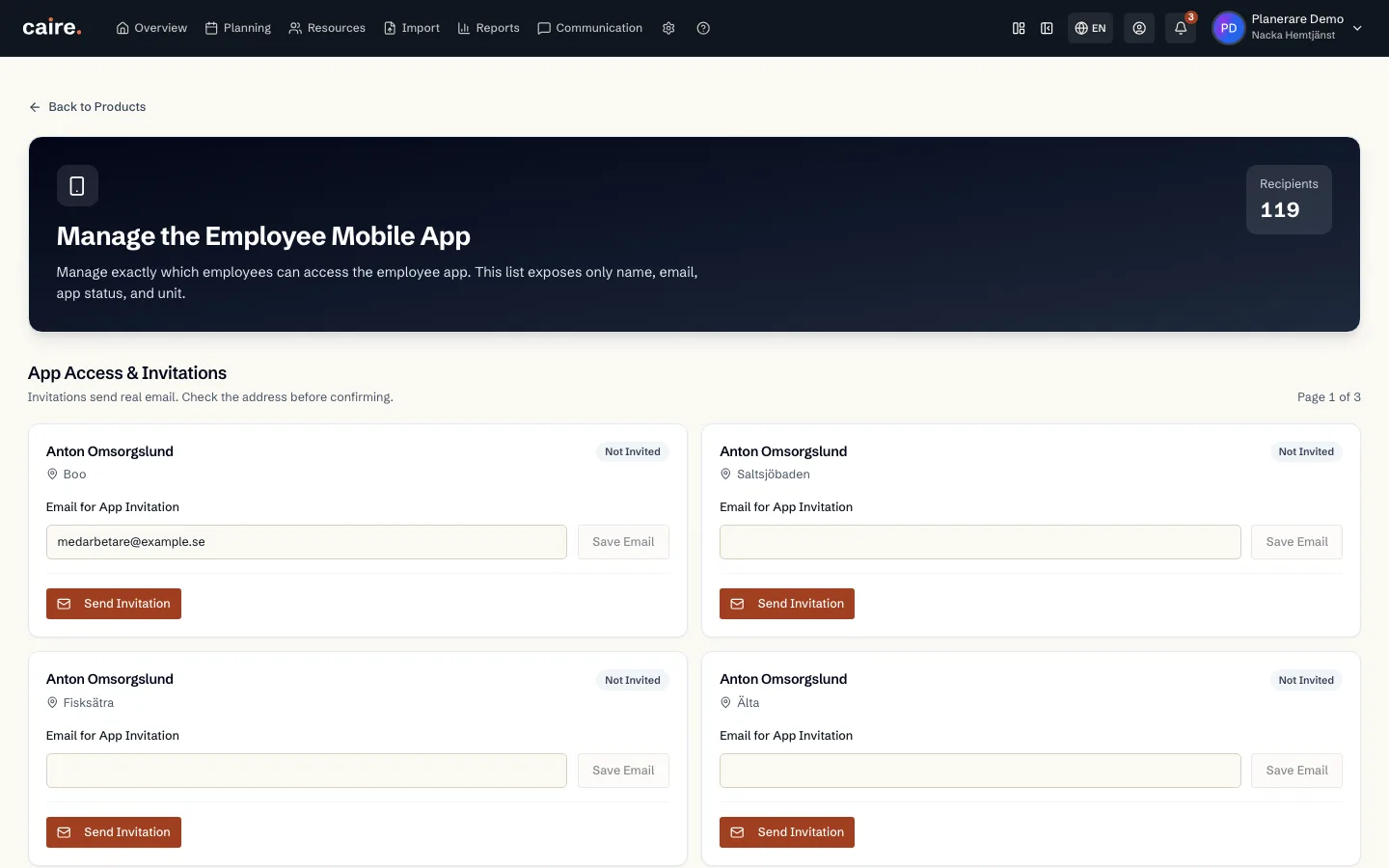
- Choose Bjud in till appen (Invite to the app) and confirm. A real email with an account link is sent.
- A new employee or client needs to be saved before the invitation can be sent.
Invite many at once
In the list you select several and choose Bjud in till appen. The dialog shows who gets an email and who does not: those already activated, those already invited and those without an email. Tick that you understand real emails are sent, and choose Send.
App-status and what you can change
The App-status column shows not invited, invited or activated. The person's page has three choices:
- Resend the invitation: the old invitation is revoked and a new email is sent.
- Revoke the invitation: the link in the sent invitation stops working and the row goes back to not invited.
- Unlink the app account: the person loses access to the app until a new invitation is sent. The user account is not deleted.
What the recipient does
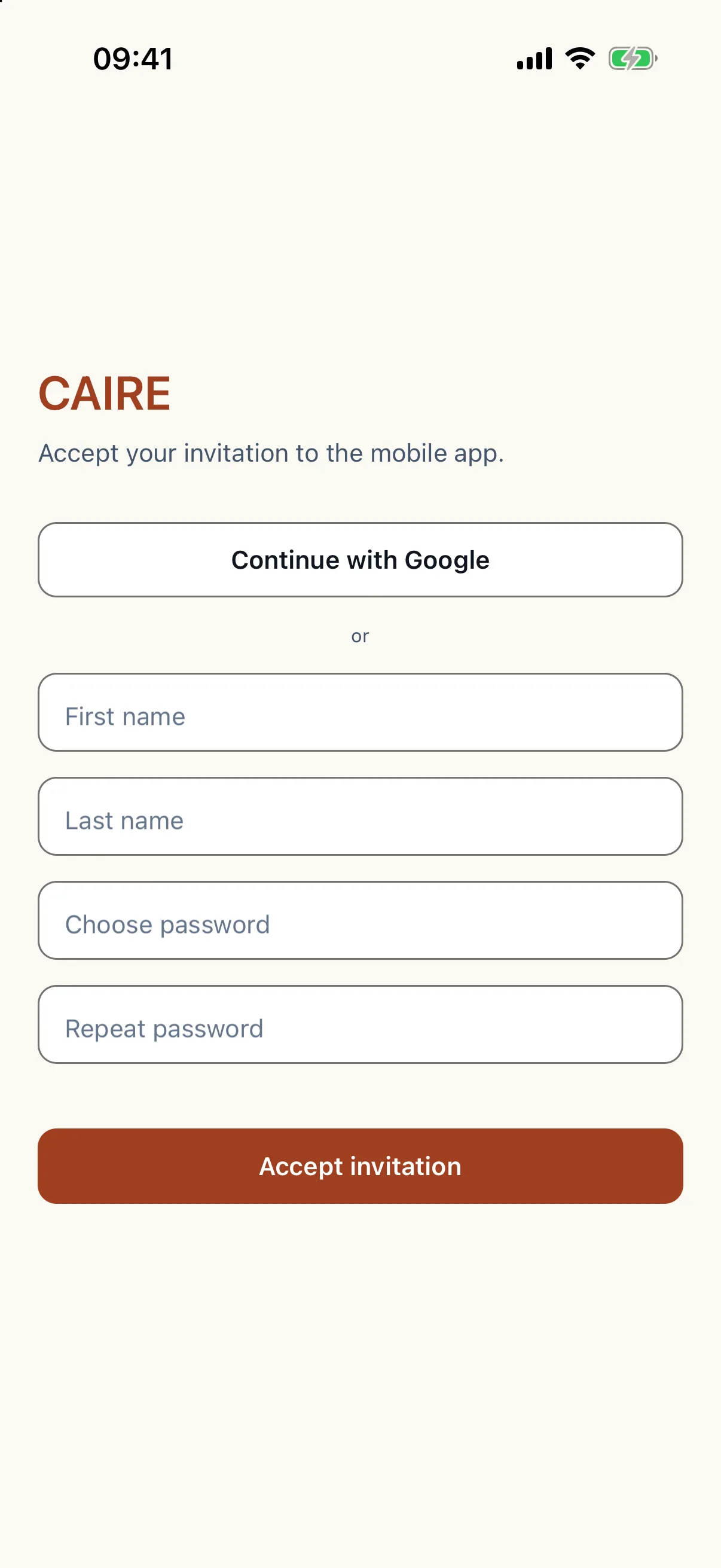
The recipient opens the invitation on their phone and creates the account with Google, Apple or email and password. With email they get a code to enter. Then they sign in to the CAIRE app with the same account and are linked to their row automatically.
A recipient who cannot find the invitation can use the invitation option on the sign-in page. When someone is already signed in to the app with another account, the app asks before it switches.
Relatives are invited by the client
A client who has the app invites their relatives by email under Mer › Anhöriga. What clients, relatives and employees may do in the app is set under Mobilappen (Mobile app) in the settings.