- For
- Employee in the app
- Type
- Guide
Sign in and find your way
Your employer sends an invitation to your email. Open it on your phone and create the account with Google, Apple or email and password. Then sign in to the CAIRE app with the same account.
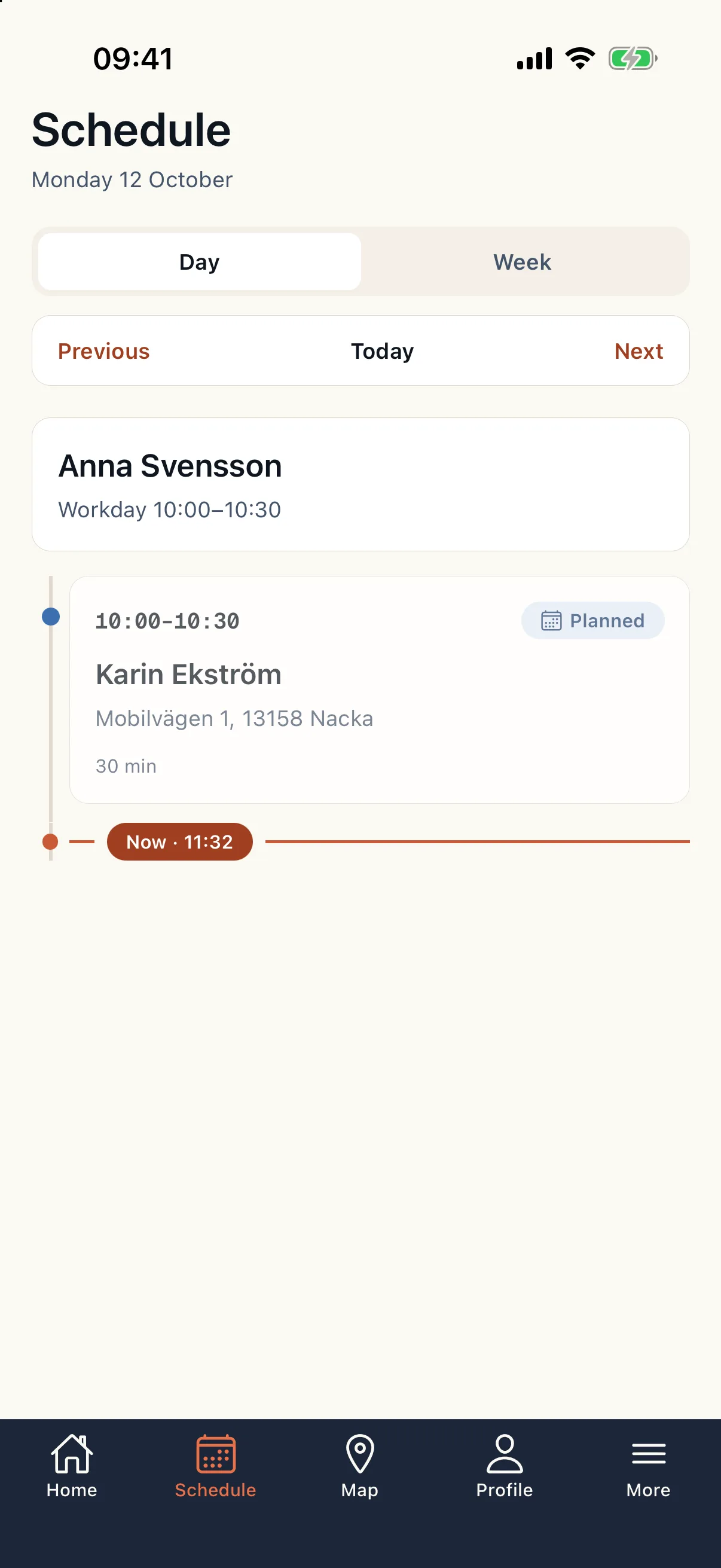
The bottom menu has five tabs: Hem (Home) with today's visits and the next client, Schema (Schedule) with your visits per day or week, Karta (Map) with today's visits and colleagues, Profil (Profile) with your details, and Mer (More) with sick report, availability, shifts, colleagues and help.
The app shows only the schedule your planner has published. When it says the schedule is not published yet, the visits appear as soon as it is. If your employer shows only today's schedule, the app says so.
At the visit
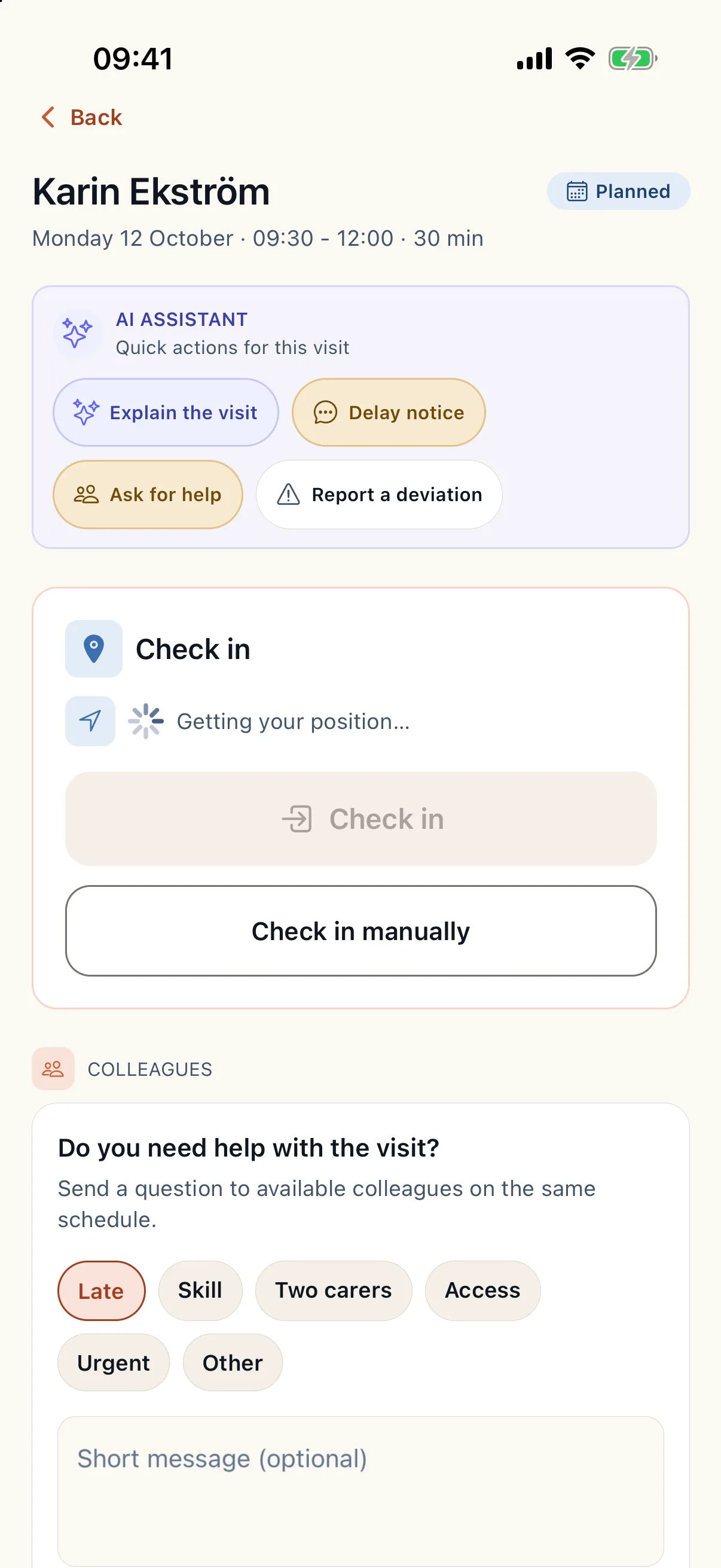
Tap a visit to see the address, door code, contact for the client and family, risks such as a dog or an allergy, the services to perform and the colleague on a double-staffed visit.
Choose Checka in (Check in) when you arrive. The app reads your position, so you need to be close to the client. When the client has a Phoniro lock or an NFC tag, you check in with it. When GPS does not work, choose manual check-in and give the reason.
Under Insatser (Services) you tick each service as done, partly done or not done, with a reason when it was not done. Ticking closes 24 hours after the visit. Then choose Checka ut (Check out).
Document
- Note: write under a new note or dictate it. Read the text through, you are responsible for it being right, and save the note.
- Photo: choose to add a photo. Location data is removed before the photo is uploaded. If your organisation allows it, you can share the photo with the client or family.
- Deviation: choose to report a deviation, describe what happened, pick the type and severity and send it.
When something does not go to plan
- The visit could not be performed: pick the reason, for example the client was not home, and send it. The office sees the report at once. The report does not cancel the visit.
- Unplanned visit: under Hem you record a visit that was not in your schedule, during your shift and within 24 hours. It is not added to the schedule.
- Messages to the office: pick a ready-made message, for example that you will be late or cannot get in. The office can reply.
- Ask for help: the request goes to available colleagues in the same schedule. Under Mer › Kollegor you can take a colleague's visit.
Without coverage and in danger
Check-ins, notes and reports are kept on the phone and sent when you have a connection again. They show as waiting until they are sent. Photos and sick reports need a connection.
The app does not replace an alarm. In danger: call 112 or follow your local routine.