What creating a schedule does
The unit's standing data applies until further notice: clients with their visits, caregivers and shift templates. When you create a schedule, that standing data is laid out on dates for a chosen period. The visits in the period are what gets planned.
One click creates the schedule and works out proposals to compare. The first is the schedule with the care plan's times unchanged. Next to it is one alternative for each visit-flex profile, where visits may move a little before or after their planned time. Every proposal uses the same visits and is shown in the same calendar.
What you need first
- The organisation's address, filled in and verified.
- A unit. The unit decides which clients and caregivers are included.
- At least one complete client in the unit, with visits in the period from the care plan.
- At least one active shift template that applies in the period.
- Caregivers with contracts and weekly schedules are recommended. Without them the schedule can still be created, but Caire builds the staffing from the visit demand.
How to create the schedule
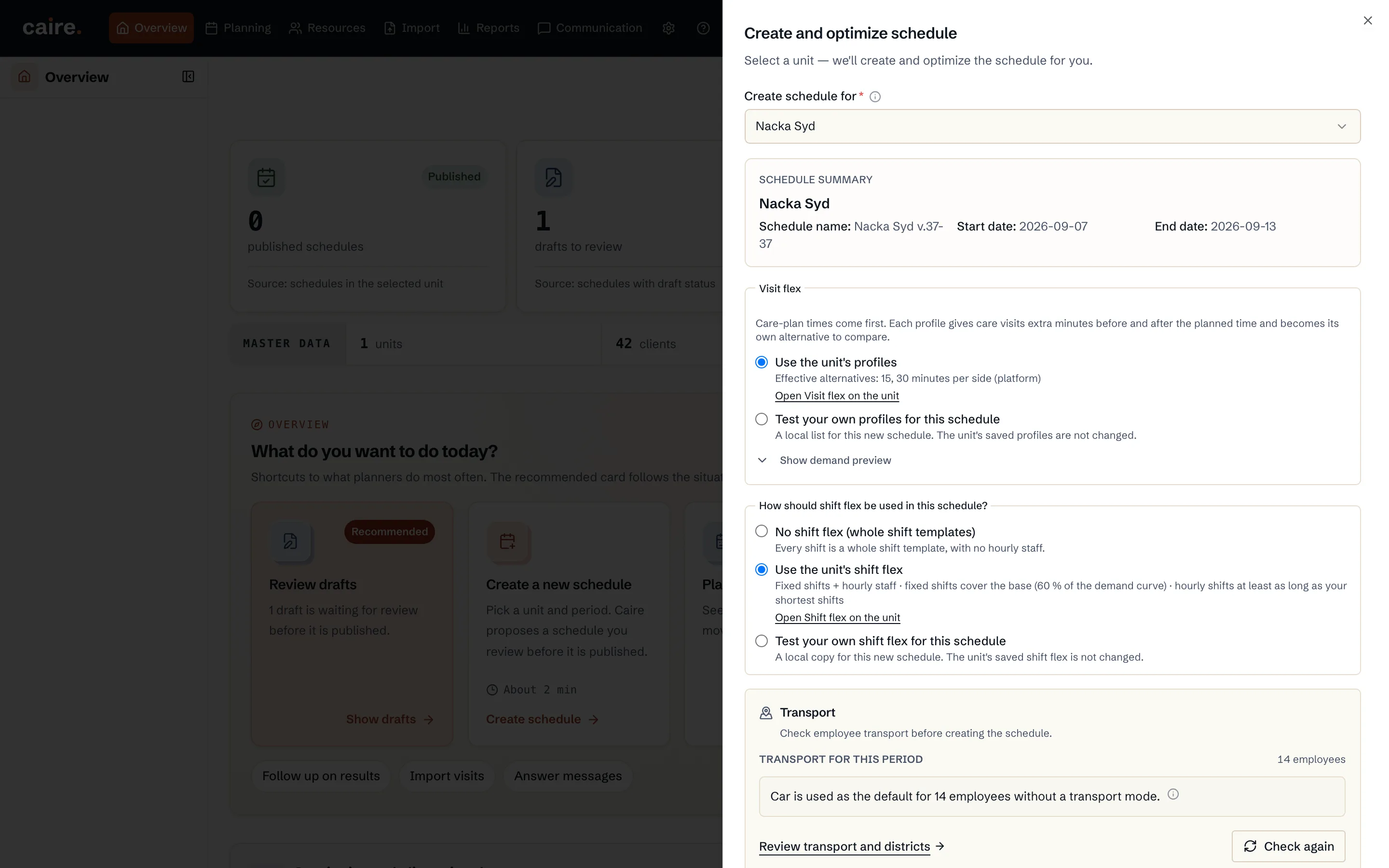
- 1. Choose Create new schedule, or Create schedule in a week that has no draft. The Create and optimize schedule panel opens.
- 2. Select the unit. Schedule name and period are filled in for you: by default the next whole week, Monday to Sunday. Under Show details you can change the name, start date and end date and see the Schedule data check.
- 3. Choose visit flex for the schedule: 0 — no extra flex, Caire flex, Unit flex or Own flex for this schedule. The values are frozen when the schedule is prepared, so the unit's saved settings do not change.
- 4. Choose how shift flex is used, for example Use the unit's shift flex or No shift flex (whole shift templates).
- 5. Check the caregivers' modes of travel under Transport.
- 6. Choose Create and optimize schedule.
The data check shows what is missing
The Schedule data check shows green, yellow or red. Green means the data is sufficient. Yellow means the schedule can be created, but that for example missing costs or incomplete weekly schedules may affect the result. Red means something is required before you can start, and the check shows what to complete.
If you want to review the schedule before anything is optimised, choose Save without optimization. The schedule is saved as a draft, and optimisation starts only when you choose to run it.
What you get back
Once the run is under way, the schedule's calendar opens and shows how far the work has come. The unchanged schedule starts first, and the visit-flex alternatives follow.
Compare the proposals under Choose and compare and switch between them without leaving the calendar. No proposal publishes itself. When you have chosen the one that fits best, you publish it, see Publish a schedule.
If something goes wrong
A proposal that fails or gets stuck is shown as failed in the schedule, with the reason. It never stops you from creating a new schedule.
If the connection drops before Caire has confirmed your request, the panel says so. Choose Check schedules before you try again, so that you do not create an extra schedule. If the schedule has already been saved, you can choose Open saved draft.