- For
- Administrator
- Type
- Guide
Invite a colleague to the web app
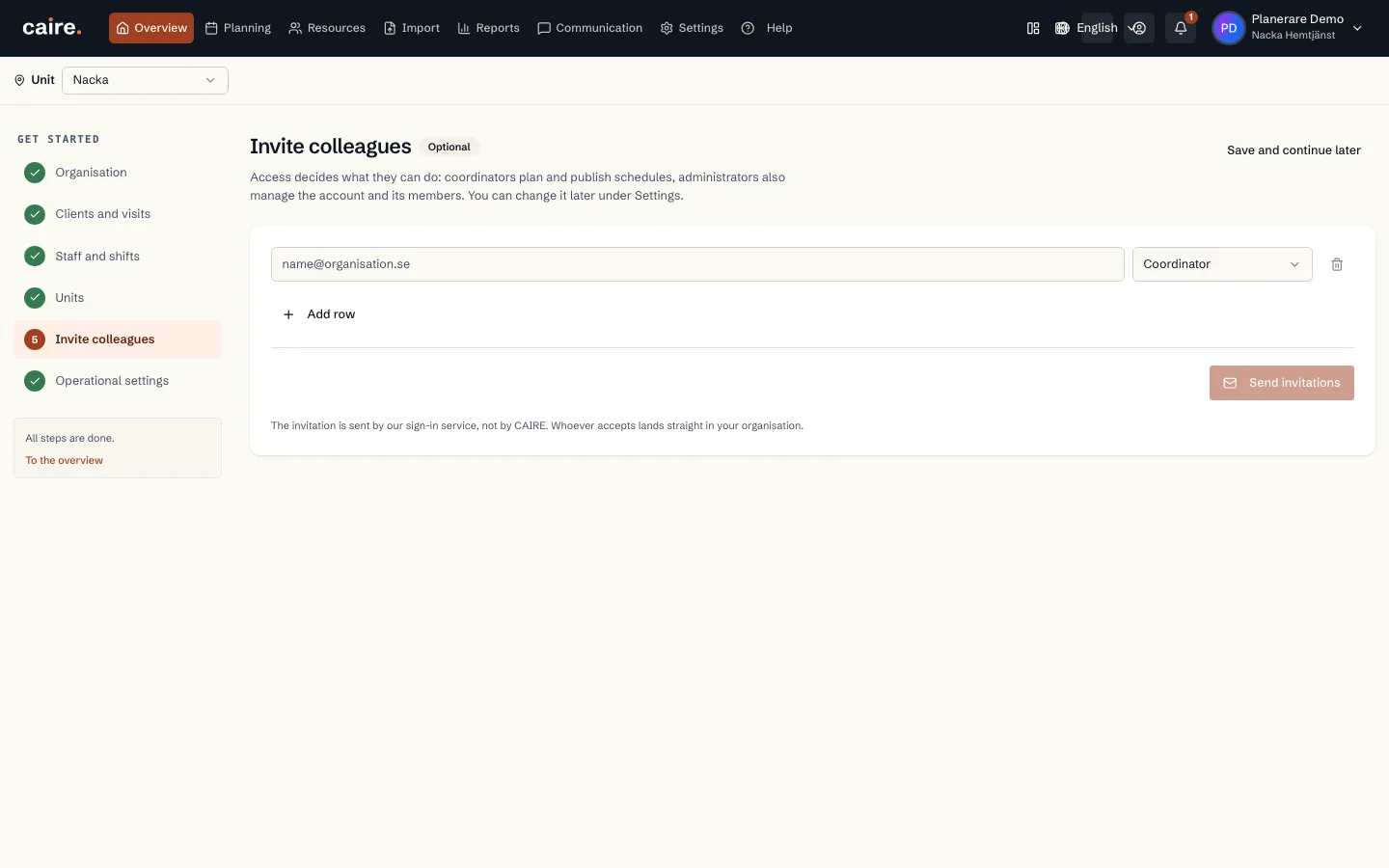
The getting-started checklist offers the same under Invite colleagues, where you can add several rows and send the invitations together. The Users menu is shown only to people allowed to manage members. Under Users you also change roles and remove users. The organisation cannot be deleted from here.
- 1. Open Settings and Users.
- 2. Invite the person with their email address and choose a role.
- 3. The person gets an email and creates their account from the link. Whoever accepts lands directly in your organisation.
What the role controls
The role decides what the person may see and do, for example plan, manage standing data or read personal identity numbers. Coordinators plan and publish schedules. Administrators also manage the account and members.
A role never grants access to a product the organisation does not have. If a menu or button is missing, you lack the permission it needs. If your permissions change, reload the page before you continue.
Sensitive data
- Personal identity numbers, contact details and addresses of clients with protected identity are shown only to people with permission to read personal identity numbers.
- Pay and cost can be protected separately. You may be allowed to see a value without being allowed to change it.
App accounts are created on the person
Employees, clients and family members use the app and are not invited under Users. Open the employee or client under Resources, check the email address and choose Invite to the app. The App status column shows not invited, invited or activated.
Sign-in and support access
When the extra step applies to your role, you are asked to confirm it is you after signing in. Identify with BankID, or use Freja eID+. Without Swedish BankID you can use an authenticator app.
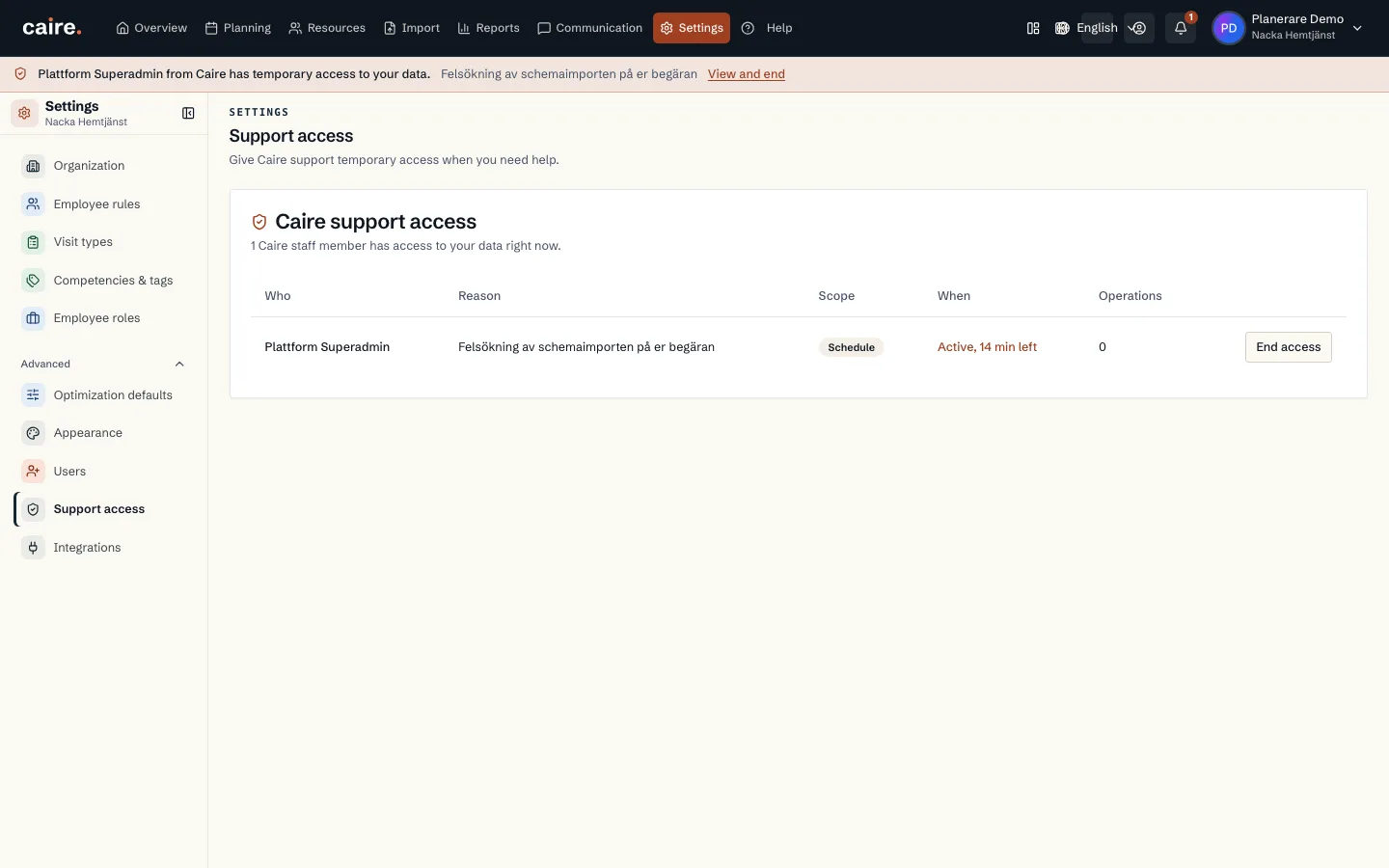
Support access shows whether anyone at Caire has access to your data. Caire has no standing access. Every session is time-limited and shown with who, why, scope and time. You can end an ongoing session there.
- Give each person their own account and only the permissions the work needs.
- Remove users and revoke app invitations when someone leaves.