- For
- Unit manager · Administrator
- Type
- Guide
What a unit is
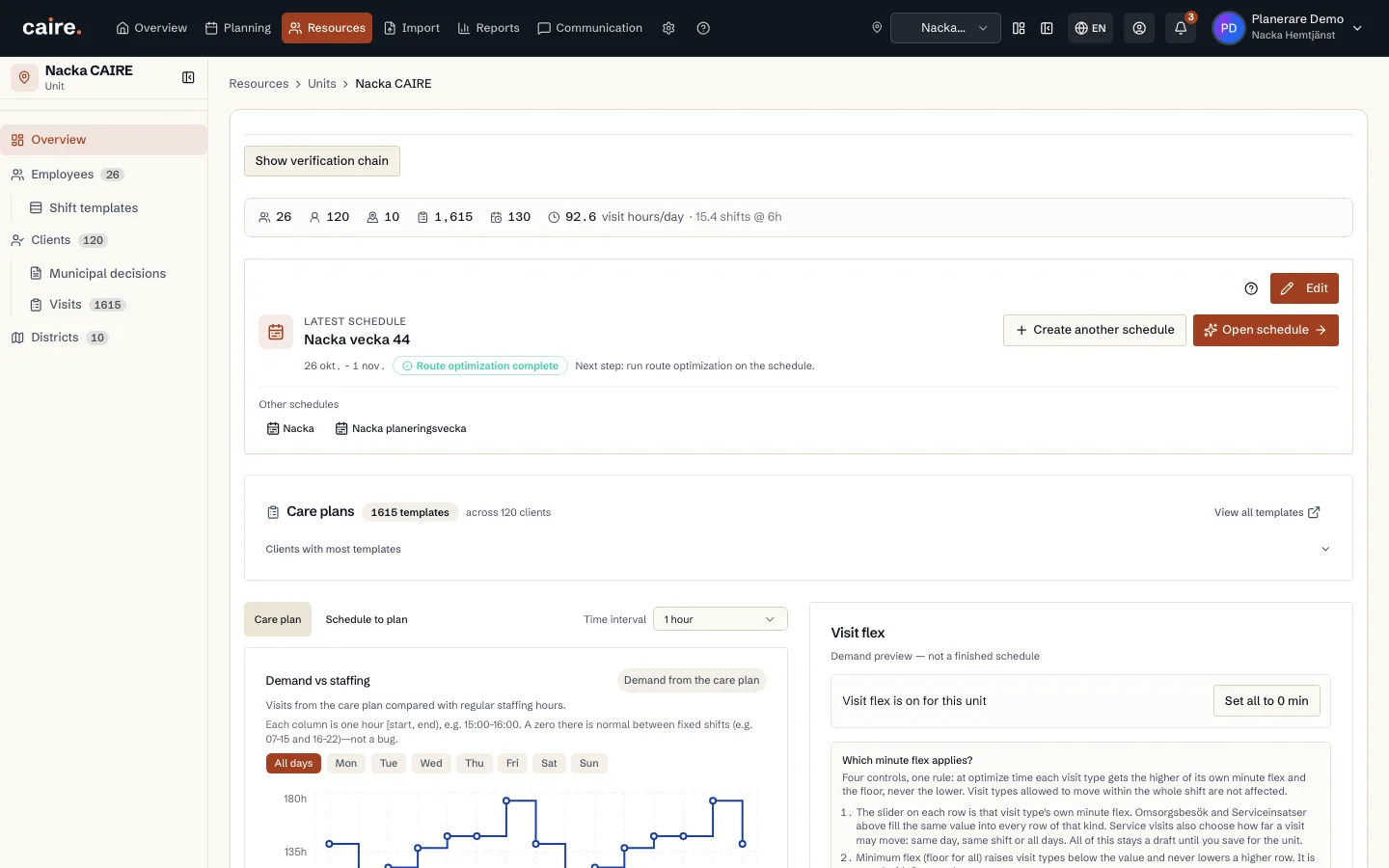
A unit is a team: the clients it serves, the staff who work there and the schedule they follow. Every schedule and every optimisation applies to one unit. Every client and employee belongs to a unit.
When you open a unit, tabs such as Overview, Districts, Employees, Shifts, Clients, Visits and Schedules appear. Everything in the tabs applies to the selected unit.
Create a unit
The collapsed sections for identifiers, demand and visits, and economy hold optional defaults. If you leave them empty, the organisation's values apply.
- 1. Open Resources, choose Units and Create unit.
- 2. Fill in Name, Parent unit and Address. The address is the office staff start from. Routes start and end there.
- 3. Save.
Archive, restore and delete
- Archive: open the unit, choose Archive or delete the unit, then Archive unit. The unit's active employees, clients and schedules are archived with it. They remain stored but disappear from lists and metrics.
- Restore: choose Show archived and Restore unit. Everything archived with the unit comes back.
- Delete permanently: only after archiving, and only for administrators. It removes employees, clients and schedules that belong only to the unit and cannot be undone. App accounts, family access and links to other systems can still block the deletion.
Merge two units
Use it when the organisation changes, for example when the night team joins day and evening. Open the unit that will end, choose Archive or delete the unit and Merge with another unit. Pick the unit to merge into. The dialog shows what moves and which schedules stay. Type the unit's name and choose Merge.
Clients with their visit templates, employees, placeholders and weekly roster rows move. Districts are removed, because they belong to the old unit. Old schedules and solutions do not change, and the old unit is archived. The merge either completes in full or not at all, and it is logged.
- What blocks the merge includes: a published, planned or approved schedule in progress, child units, current imported standing data, an open follow-up or social journal for a client, pending or upcoming offered shifts, or units in different environments.
- You need the right to manage resources and write access to both units.